Edit a User
You can edit a user if (for example) they relocate to another tenant or if they are given another phone.
|
1.
|
In the Manage Users page (Setup > Users & Devices > Manage Users), locate the row of the user. |
|
2.
|
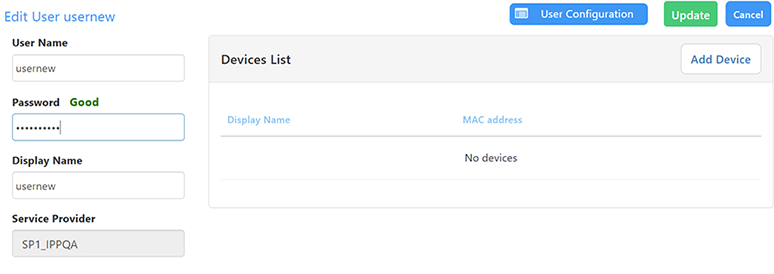
Click  (the Edit icon) under the Actions column in the row; the Edit User screen opens. (the Edit icon) under the Actions column in the row; the Edit User screen opens. |
|
3.
|
From the Edit User screen, you can: |
|
●
|
Edit the same fields as when adding the device. |
|
●
|
View a list of phones assigned to the user. |
|
●
|
Manage user devices from the Devices List: |
|
❖
|
Next to a previously added phone in the Devices list, click (the Edit icon) or  (the Delete icon) to edit or delete the phone. (the Delete icon) to edit or delete the phone. |
Note: To permanently delete a phone, it must be disconnected. If it is connected, it will return at its next keep-alive message.
|
●
|
Click User Configuration to set up the user configuration. |
|
4.
|
Click Update to save the changes. |
You can also view the details of a user's devices, edit devices, or delete devices from the user's Devices display (see Manage User Devices).